✕
Create a free account to see live performance
SEC rules require us to show performance inside a logged-in account.
Every strategy runs live. Inside, you see every holding, every trade, and every move to cash.
SEC rules require us to show performance inside a logged-in account.
Every strategy runs live. Inside, you see every holding, every trade, and every move to cash.
This guide shows you how to connect ChatGPT to Portfolio Lab so it can trade your investment strategies. ChatGPT takes a few more steps than other agents because it requires developer mode, but the whole setup is still no code.
You need three things:
ChatGPT can now read your Portfolio Lab data, but it still needs to know what to do with them. Open the prompt builder in Portfolio Lab to generate a ready-to-use prompt, paste it into ChatGPT, and ChatGPT can start trading your investment strategies.
Custom connectors are available on paid ChatGPT accounts that support developer mode. If you do not see the option to add a custom connector, your plan or workspace may not have it enabled.
The two most common reasons are that developer mode is turned off, or the connector was not enabled for that specific chat. Check both. Custom connectors must be switched on in each new conversation.
Yes. ChatGPT enables custom connectors per conversation. Turn Portfolio Lab on from the developer mode menu each time you start a new chat.
Portfolio Lab's feed is read-only and only provides your Portfolio Lab data. It never places trades. Whether and how your agent places trades depends on the trading tools you connect and your agent's own permission settings, which you control.
Yes. Portfolio Lab only shares a read-only list of your Portfolio Lab data. It never sees your brokerage account, never sees your balances, and never moves your money or places trades. The only thing that can act on your account is the separate trading tool you set up, which stays under your control.
The feed is read-only. Portfolio Lab sends your Portfolio Lab data and nothing else. It cannot see your account, move money, or place trades. Your agent and the trading tools you connect handle execution, and you control their permissions.
ChatGPT is a trademark of OpenAI. Portfolio Lab is not affiliated with, endorsed by, or sponsored by OpenAI.
Build, test, and deploy your own strategies in Portfolio Lab. Free to start.
Educational & Research Disclosure: The content provided is for informational and educational purposes only and is not intended to constitute investment advice, a recommendation, solicitation, or offer to buy or sell any security. Any discussion of market trends, historical performance, academic research, models, examples, or illustrations is presented solely to explain general financial concepts and does not represent a prediction, guarantee, or assurance of future results. Past performance is not indicative of future results. All investing involves risk, including the possible loss of principal.
I asked Claude to build 1,000 trading strategies. Every backtest looked brilliant. Then I corrected the subtle errors line by line, and all 1,000 lost their edge. Here's why that keeps happening, and what it actually takes to build a strategy that survives.
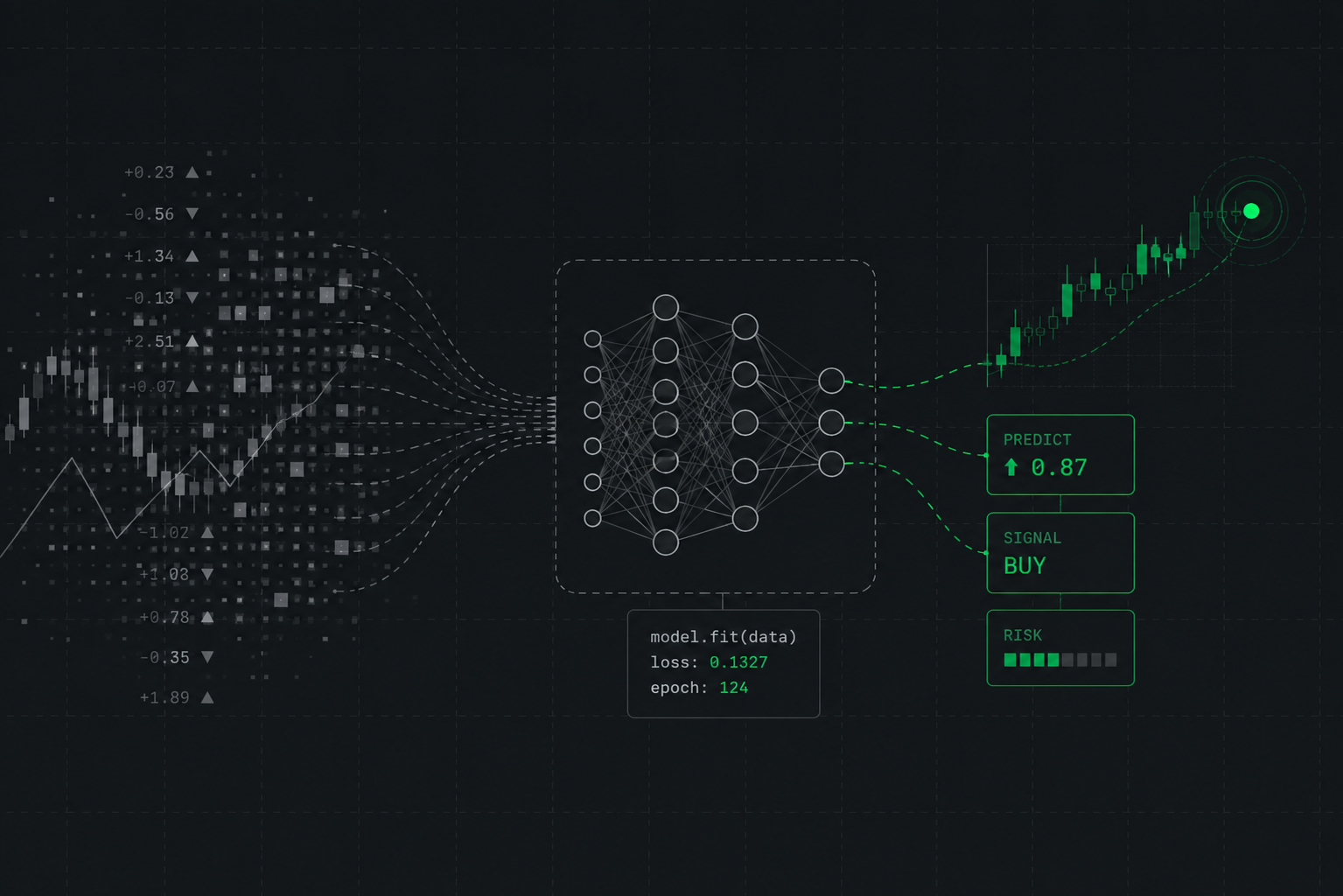
Every AI investing product now promises agents that continually learn and adjust. Strip away the marketing and that describes continuous re-fitting to recent data, which is the mechanism of overfitting. There is a right way to build adaptive models, and it is narrower than the pitch.

In 2020, the most successful quant fund in history lost more than 20 percent and told its investors it would not be changing the models. The investors who left anyway converted a temporary drawdown into a permanent loss. Every systematic strategy has years like this. What decides your outcome is the yardstick you use to judge them.